
Video game homeschool unit study
“Want to play
the game I made?”
Turn their love of gaming into a reason to read, experiment and think for themselves. Your Player explores history, brain science and online decision-making through hands-on challenges while designing and coding a game they can proudly share.
- Ages 7 to 11Grades 2 to 5
- 8 worldsOne original game
- Guided lessonsNo coding experience needed
Social studies, STEM & the arts
Critical thinking they can put to work
Read the clues history leaves behind
Map five ancient games and use surviving boards, pieces and written records to understand how people played. Meet inventors whose ideas changed what games could do.
See who benefits from a business decision
Play through a price war to see why one company’s choices depend on another’s. Consider who benefits when prices change and how business goals affect a game.
Find out whether an idea holds up
Trace the path from eyes to brain to fingers, then measure reaction time in a fair test. Compare results and explain what the evidence can and can’t show.
Question what numbers mean
Use rounding, bar graphs and percentages to compare career earnings. Discuss why a top earner’s income says little about what most people can expect.
Write for a real audience
Discuss biographies, nonfiction and a novel, then develop interview questions and a pitch. Write instructions someone can use and explain the decisions behind the finished game.
Recognize pressure online
Examine persuasive offers for missing information and false urgency. Practice setting boundaries, asking for help and repairing harm when an online interaction hurts someone.
Work out what to try next
Build a prototype, then use events, variables and if-then logic to turn a plan into code. Record bugs and test whether a change solves the problem.
Design for someone else
Create an original character with a 16-by-16 grid and four colors. Plan levels and box art that communicate the game’s idea to another person.
Video game design with MakeCode Arcade
A game they can hand to a friend
Your Player creates an original character and three levels, deciding how the game works and what makes it fair. They write the code, test their decisions and fix problems before adding sound, credits and a title screen.
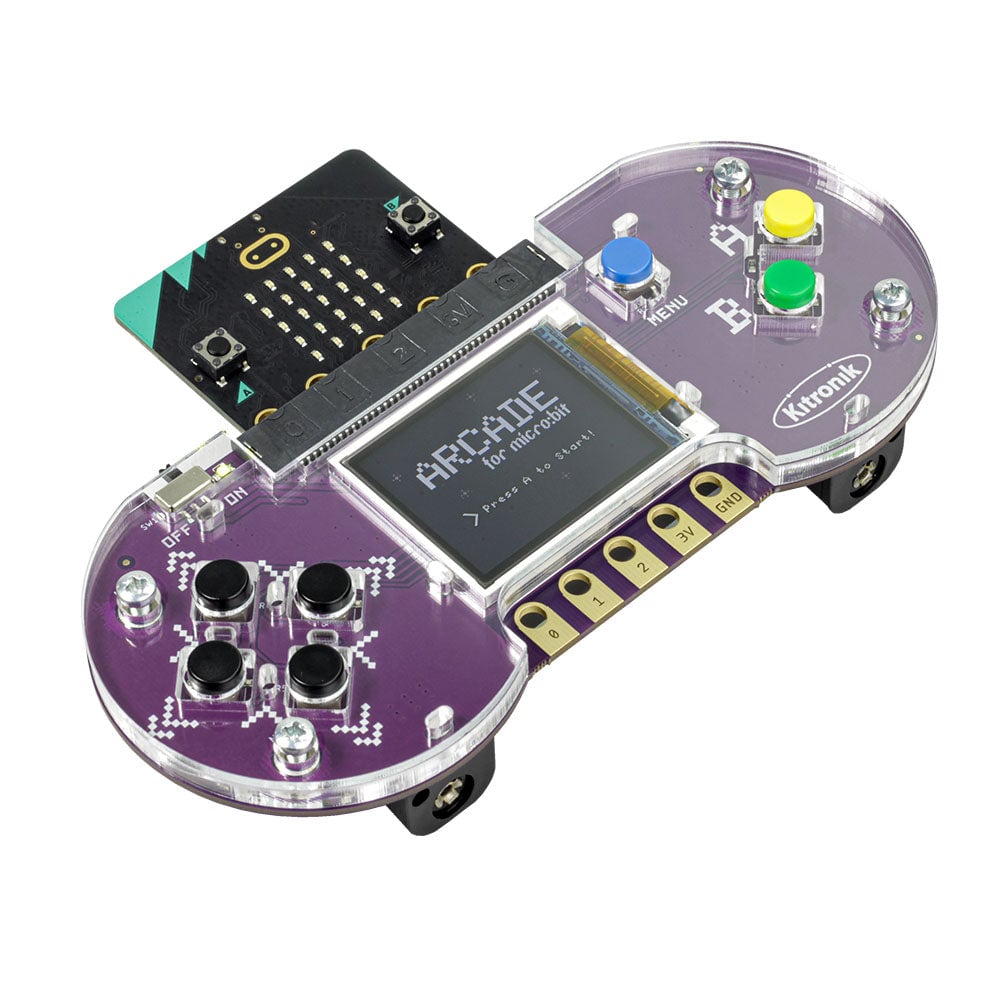
In World 8, they can put that game on a Kitronik ARCADE handheld and pass it to a friend. Every move on the screen comes from code they wrote.
The handheld is optional and sold separately. The game also runs in free MakeCode Arcade. See the Kitronik handheld.
Eight careers in gaming
Discover where their interests could lead
Compare the work and skills behind eight gaming careers, including how steady pay differs from the uncertain earnings of creators and competitive players.
- Programmer
- Game designer
- Artist
- Sound designer
- Producer
- QA tester
- Gaming YouTuber
- Esports player
Your Player chooses a role to explore and one skill to practice.
Take a closer look
Optional sample · World 2Try “Program the Robot”
A short challenge to see how a lesson works.
Can your Player
find the bug?
The robot needs to reach Star 2. Run the program, watch where it stops, then change the order of the commands.
The grid has six rows, counted from top to bottom, and six columns from left to right. The robot starts at row 6, column 1. Star 2 is at row 2, column 5. Walls block row 3, columns 2, 3 and 4, and row 5, column 5. Each command moves one square. The robot stops if it meets a wall.
Your eight commands
Select a card to change its place.
The robot starts in the bottom-left corner. Run the program and watch where it stops.
Now ask your Player: Why did changing the order make a difference?
A little hint
The robot turns right too soon. Can you move an UP card so it gets above the wall first?
The interactive controls need JavaScript. You can still read the grid and commands, or browse the activity pages below.
On paper, you’re the robot.
In the unit, your Player arranges the command cards and you move a coin across the grid. They find the mistake, test a change and explain why it worked. The guide gives you the directions and questions.
This is a browser adaptation of one activity. Press Start is a printable PDF unit; MakeCode Arcade lessons begin in World 4.
See the actual pages
One small challenge from an eight-world game-making adventure.
Get Press Start · $29.99Explore the eight worlds

“How can I make a game that’s fun, fair and safe for my friends?”
01The Lost Game TempleGames before screens
Map five ancient games and examine what their surviving boards and pieces reveal. Change a rule to find out how it changes play.
Add to the game: A core mechanic and an original game concept.
02Bouncing Dot LabThe first video games
Meet Jerry Lawson and explore the first video games. Give a pretend robot precise instructions and test a repeated action through Table Pong.
Add to the game: A core loop, tested through a tabletop prototype.
03Insert Coin CityThe arcade boom
Explore the arcade boom and the business of earning quarters. Create a pixel hero and plan challenges that keep a game fair.
Add to the game: A paper sprite and three level maps.
04Console Clash CanyonGame machines and competition
Put consoles in historical order, then play through a price war to see how competing companies’ choices affect each other.
Add to the game: A digital hero that moves and talks.
05Castle FirewallKindness, trust and safety online
Practice setting boundaries and repairing harm while learning to recognize pressure, question missing information and ask for help online.
Add to the game: Community rules, a help plan and a Designer’s Pledge.
06Neuron JungleGames and the brain
Run a reaction-time experiment and explain what the evidence shows. Explore how challenge and rewards keep us coming back for one more try.
Add to the game: Working score and lives, plus a one-page game plan.
07Bug Hunter HQGame studios, careers and testing
Write interview questions, investigate eight careers and use math to compare earnings without confusing exceptional success with typical work.
Add to the game: Three playable levels using if-then logic, plus a bug report.
08Launch Pad SummitPolish, share and launch
Write a manual and design box art for someone new to the game, then present it and use feedback to make improvements.
Add to the game: Version 1.0, ready for family and friends to play.
Inside the Press Start unit study
Eight connected worlds bring history, science, math, reading, writing, art and beginner coding into one game-design project for ages 7 to 11.
- Step-by-step teaching plansDiscussion prompts, book and supply lists, technology setup and optional Family Nights.
- Player activities and reflectionsExperiments, design challenges, game-maker cards and a 32-page Dev Journal to record ideas, reflect on discoveries and track improvements.
- Game-building guidanceMakeCode instructions, troubleshooting notes and testing pages for developing their game.
- Launch-day materialsBox art, a game manual, invitations and a certificate for sharing what they’ve made.
What you’ll need
Everyday supplies
A printer, cardstock, scissors, glue, small stickers and simple materials such as an egg carton, dried beans and ping-pong balls.
A device with internet
Use a laptop, Chromebook or supported tablet with free MakeCode Arcade and Google’s Interland. Nintendo Switch activities are optional.
Optional handheld: Kitronik ARCADE model 56116, a micro:bit V2, three AA batteries and a micro-USB data cable compatible with your device.
Five books
- Jerry Changed the Game!Don Tate
- Game On!Dustin Hansen
- Staying Safe OnlineLouie Stowell
- The BrainSeymour Simon
- Marcus Makes It BigKevin Hart with Geoff Rodkey
Is this right
for your family?
What ages and grades is Press Start designed for?
Press Start is designed for ages 7 to 11, roughly grades 2 to 5. An adult Guide leads the discussions and activities using the teaching plans, with no previous coding experience needed.
Is Press Start a video game or a printable unit study?
Press Start is a printable homeschool unit study delivered as PDFs: Start Here, the combined Worlds 1 to 8, and the Dev Journal. Your Player creates their own game using the separate, free Microsoft MakeCode Arcade editor. Books, supplies and optional hardware are not included.
Do we need to know how to code?
No. You’ll guide each session using the provided instructions and troubleshooting notes.
Is this a full homeschool curriculum?
Press Start is a coding unit study for elementary homeschool, with social studies, science, math, reading, writing and art woven through the game project. Use it alongside your regular math and language arts programs.
What kind of coding will my Player learn?
Your Player learns block coding in Microsoft MakeCode Arcade, using events, variables and if-then logic to build their game. They practice debugging by testing the code, finding bugs and making changes.
Do we need the Kitronik handheld?
No. Your Player’s game runs in free MakeCode Arcade. Transferring it to a handheld is optional.
How do hands-on activities and coding fit together?
Worlds 1 to 3 focus on paper, games and hands-on prototypes. Coding begins in World 4, with experiments, reading and movement continuing throughout. Some optional activities and Family Nights use screens.
Do we follow the worlds in order?
Yes. Later activities use the character designs, level plans and code created in earlier worlds.
What does the online-safety world cover?
World 5 covers kindness, trust, boundaries and help-seeking, plus an adult-previewed lesson on unwanted content and requests for pictures. Readiness guidance and Gentle Mode wording let you choose how to approach it. No explicit images are shown.
Do I have to print every page?
No. Each session lists what to print. Guide pages can stay on screen; the Player activities and Dev Journal are designed for printing.
Can siblings use it together?
Yes. The household licence lets you print a Dev Journal and Player pages for each Player.
Try an idea before you begin
Start with five hands-on video game design activities, or read our MakeCode Arcade guide for homeschool beginners for a look at the coding tool. You can also browse the other Made Deliberate homeschool unit studies.